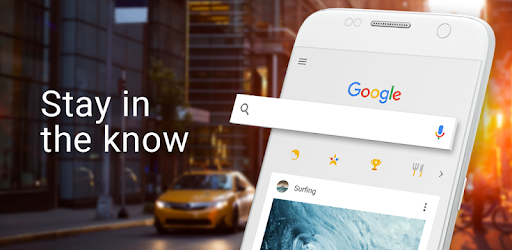
You use it every day—maybe multiple times a day. That little blue G icon on your Android home screen, the search bar at the top of your phone. You type in questions, you hit search, you get answers. Simple, right?

But this app is so much more than a search box. It's a Swiss Army knife hiding in plain sight—packed with tools that can translate, identify, calculate, time, and even entertain you. Most people never go beyond typing a few words. Here are 15 hidden features that might change how you use your phone.
That little camera icon inside the search bar? Tap it. That's Google Lens, and it can do things that feel almost like magic:
Translate text in real time—point your camera at a menu, a street sign, or a document, and the app overlays the translation directly on top of the original text. No typing required.
Identify plants and animals—seen a cool flower on your walk? Snap a photo. Lens will tell you what it is.
Scan QR codes and barcodes—no need for a separate scanner app.
Copy text from the real world—point at a sign, select the text, and paste it anywhere. It's like OCR without the extra steps.
Search what you see—point at a landmark, a piece of furniture, or even a dish at a restaurant. Lens will find information, similar products, or recipes.
You don't need a separate app for timers, calculators, or unit converters. Just type or say what you need:
"Set timer 10 minutes" — a countdown starts immediately in your browser. Works for alarms and stopwatches too.
"Flip a coin" or "Roll a die" — perfect for settling debates or making decisions. The app shows you the result with a little animation.
"100 USD to EUR" — instant currency conversion. Works with any unit: inches to cm, miles to km, Fahrenheit to Celsius.
"Solve 25x17" or any math problem — type it in, and the calculator appears right at the top of the results. No opening a separate calculator app.
"5% of 200" — same thing. The answer appears instantly.
Ever heard a song in a café and wished you could identify it? Instead of opening Shazam, just say or type:
"What's this song?"
Or tap the mic and let it listen. The app will identify the track, show you the artist, and even link to lyrics. All built in.
Google Search app doubles as a quick info dashboard:
Search "weather" — see the forecast without tapping any links.
Search a team name (like "Lakers" or "Manchester United") — see scores, schedules, and standings instantly.
Search "movies" — showtimes for theaters near you appear right in the search results.
Search "flight status [airline] [flight number]" — real-time flight info, no need to visit an airline website.
You know you can search by uploading an image—but did you know you can:
Long-press on any image in your search results to trigger a visual search for that image.
Find the original source of a photo, or look for similar images, right from the search page.
Great for checking if a photo is real, finding higher-resolution versions, or discovering where a product is sold.
You don't need to open Google Translate separately. Just:
Type or say "Translate hello to Spanish" — the translation appears instantly.
Or tap the microphone and say the phrase you want translated—the app will recognize it and translate it on the spot.
Scroll down from the search bar, and you'll see a feed of articles and news. That's Google Discover. Here's how to make it actually useful:
Tap the three dots on any card and select "Not interested" to fine-tune what shows up.
Follow specific topics (like "Photography" or "Space Exploration") by searching for them, then tapping the "Follow" button.
Remove annoying sources by selecting "Don't show content from [source]."
The more you customize, the better the feed becomes—no more random celebrity gossip unless you actually want it.
Tap the mic icon, and you're in voice search mode. Most people use it for simple questions, but try these:
"Show me photos of [something]" — the app will pull up image results.
"Navigate to [address]" — if Google Maps is installed, it'll launch navigation directly.
"Open [app name]" — yes, it can launch apps too.
And if you're in a noisy place or don't want to speak aloud, you can type your query—no voice needed.
Looking for something specific on a site that has terrible navigation? Use:
"site:website.com [your search term]"
Example: site:reddit.com best budget headphones
This searches only within that domain. Works the same way as desktop Google search.
Need to know what time it is in Tokyo right now? Type:
"Time in Tokyo"
Or London, New York, Sydney—any city. The app shows the current local time, including date and time zone info. No scrolling through world clock apps.
This one's silly but fun. Search:
"What year is it?"
Google often gives a playful response. Try it. Not practical, but a nice Easter egg.
You can type the name of any app installed on your phone into the Google search bar—and tap the result to open it. It's a faster way to launch apps if you don't want to hunt through your home screen.
Type "define [word]" to see a full dictionary entry right at the top of the results. Includes pronunciation, examples, and synonyms. No need for a separate dictionary app.
Just type "coffee near me" or "gas station near me" and the app shows a map with locations, ratings, hours, and directions—all without opening Google Maps separately.
Depending on your phone, you might be able to long-press the home button or the power button to trigger a screen search. This lets you search for text or images that are currently on your screen—handy for copying text from apps that don't allow selection, or identifying something you see in a video.
This little blue G icon has a lot more going on than meets the eye. You've probably been using only a fraction of what it can do. Try a couple of these today—you might find one that saves you time, or at least makes you smile.
Which one surprised you most? Open the app and give it a shot—it's all already there, just waiting to be discovered.
How the Google App Enhances Your Daily Life: Tips and Tricks

How the Google App Can Help Boost Your Productivity

Google App vs. Competitors: A Deep Dive Into Features and User Experience

A Magical Christmas: Using Tech to Warm Up Family Parties & Remote Reunions ✨

5 Story Engines Every Toca Life World Beginner Needs to Know